9 Best Open Source Alternatives to Lightroom

Updated July 2026

Lightroom does something genuinely hard well: it treats RAW developing as non-destructive, so your edits are just instructions layered over an untouched original, and it keeps a catalog that turns thousands of frames into something searchable and gradable at speed. The catch is the subscription and, more quietly, the catalog itself - once your library is synced into Adobe's cloud, your photos and the edit history that defines them are organized inside a service you have to keep paying to fully use, and migrating that history out is deliberately not simple.

The open source alternatives below offer the same non-destructive RAW workflow and cataloging while keeping the originals and the edit database on storage you control. Your library never has to check in with a vendor's cloud, and the develop history that represents your work stays in formats you can back up and move.

PhotoPrism logo

1.PhotoPrism

39.8kOtherGo Self-host
PhotoPrism screenshot

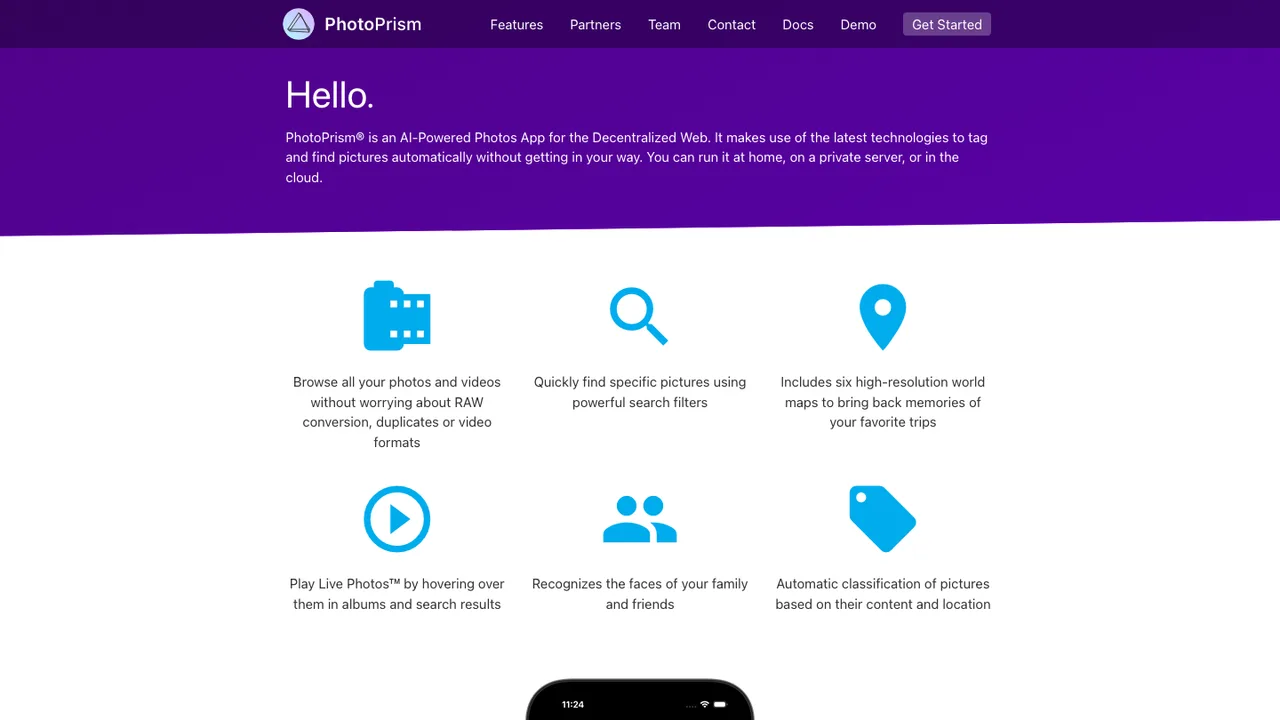
PhotoPrism is an AI-powered photos app for organizing and browsing pictures and videos. It is built to run at home, on a private server, or in the cloud, and gives you a web-based way to keep your library accessible without relying on a single hosted service.

  • Browse RAW images and video formats
  • Search by labels, location, resolution, color, chroma, and quality
  • Auto-label pictures and recognize faces
  • Live Photos play on hover and in slideshows
darktable logo

2.darktable

12.6kGPL-3.0C
darktable screenshot

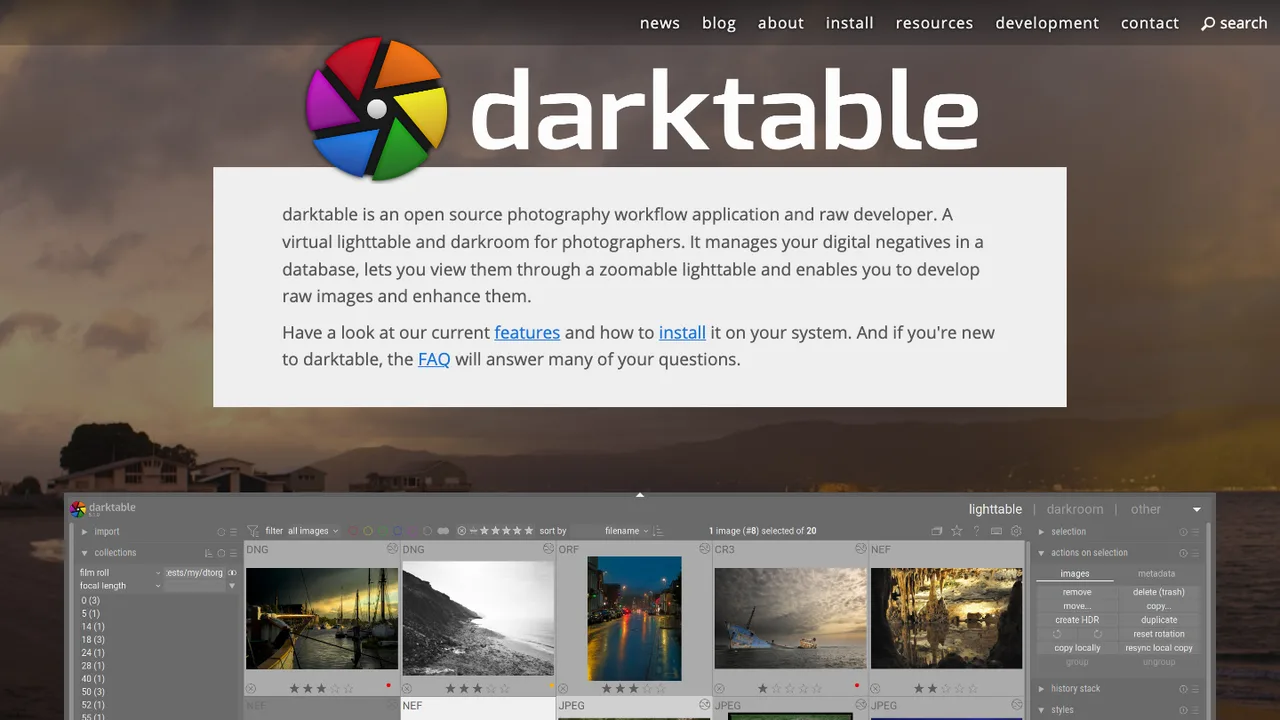
darktable is a photography workflow application and non-destructive raw developer. It acts as a virtual lighttable and darkroom, keeping your digital negatives in a database so you can browse, develop, enhance, and export images without altering the originals.

  • Database-backed management of digital negatives
  • Zoomable lighttable and darkroom views
  • Develop, enhance, and export raw images
  • Optional AI object masks, denoise, and upscale
LibrePhotos logo

3.LibrePhotos

8kMITPython Self-host
LibrePhotos screenshot

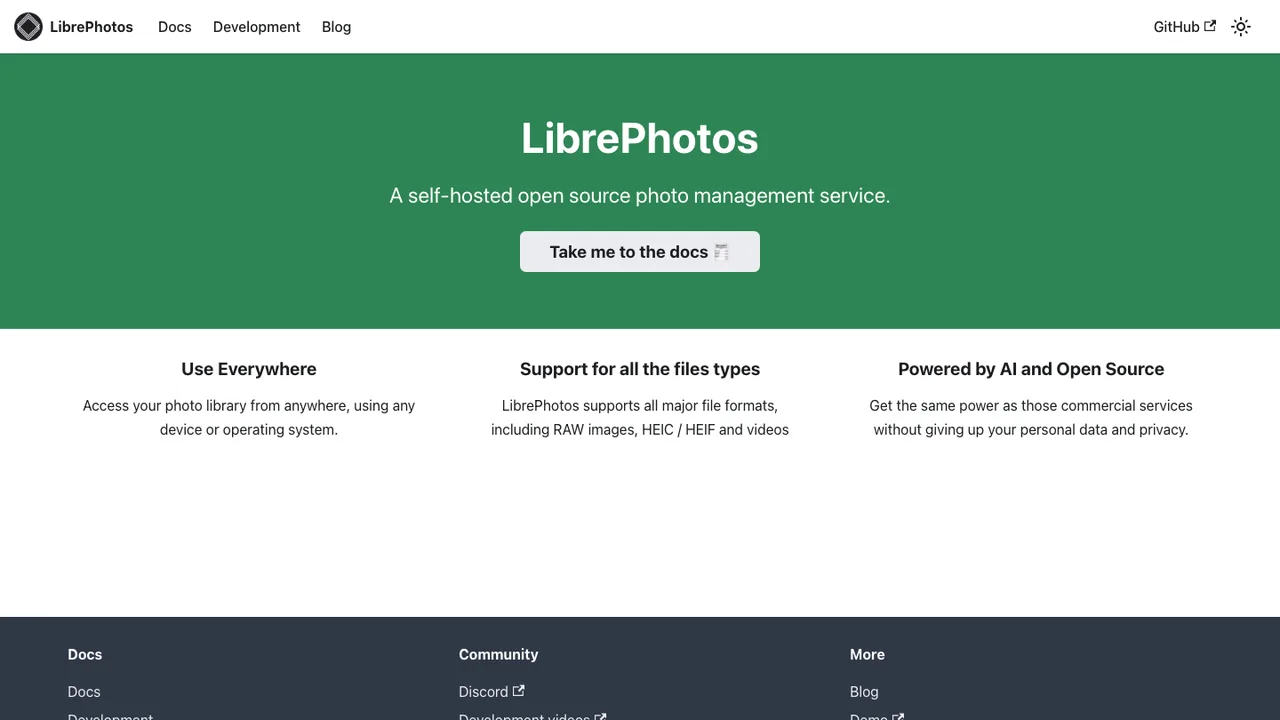
LibrePhotos is a self-hosted photo management service that keeps your personal photo library on hardware you control. It scans pictures from your file system, including raw photos and videos, and presents them in a timeline view alongside automatically generated albums based on events like "Thursday in Berlin."

  • Face recognition and classification to browse by person
  • Object and scene detection with reverse geocoding
  • Semantic image search and search by metadata
  • Timeline view and automatic event-based albums
Photoview logo

4.Photoview

6.5kAGPL-3.0TypeScript Self-host
Photoview screenshot

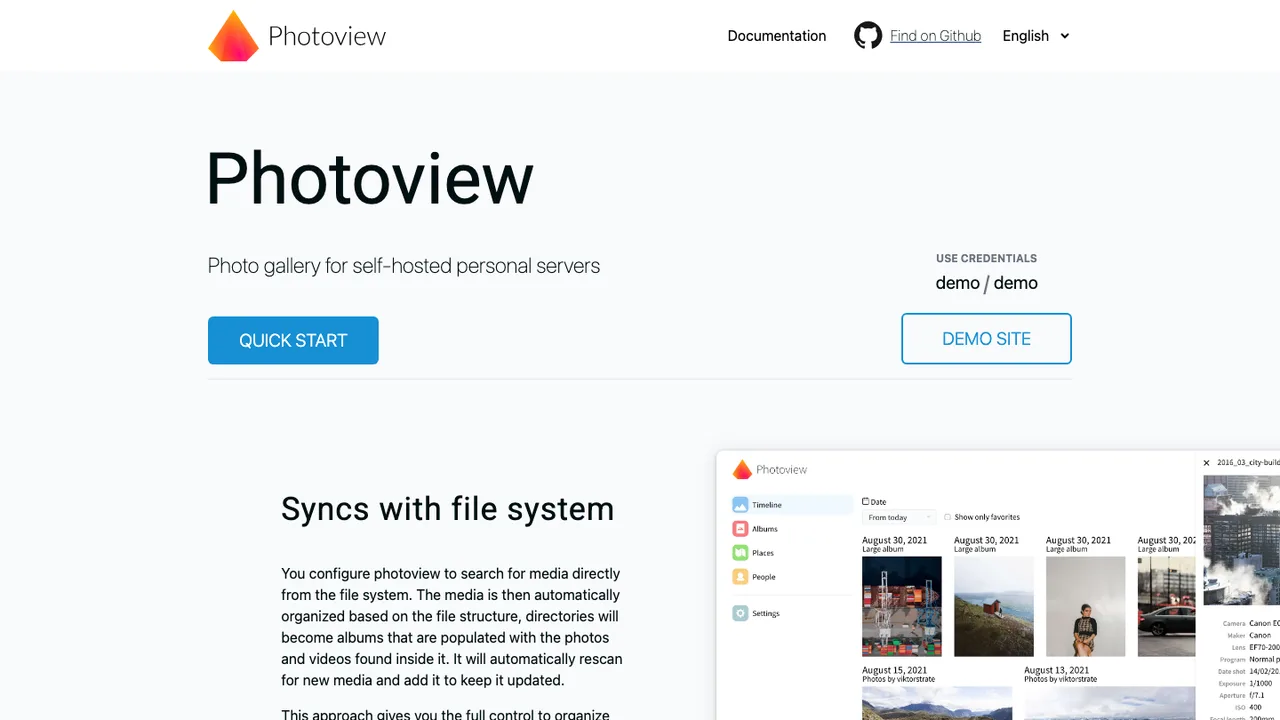
Photoview is a self-hosted photo gallery made for photographers who keep thousands of high-resolution photos in folders on their own server. It gives you an easy, fast way to browse a large library without copying everything off the file system.

  • Scans file system directories and maps them to albums
  • Automatic thumbnail generation for fast browsing
  • Raw file support and EXIF parsing
  • Face recognition groups photos of the same person
Lychee logo

5.Lychee

4.2kMITPHP Self-host
Lychee screenshot

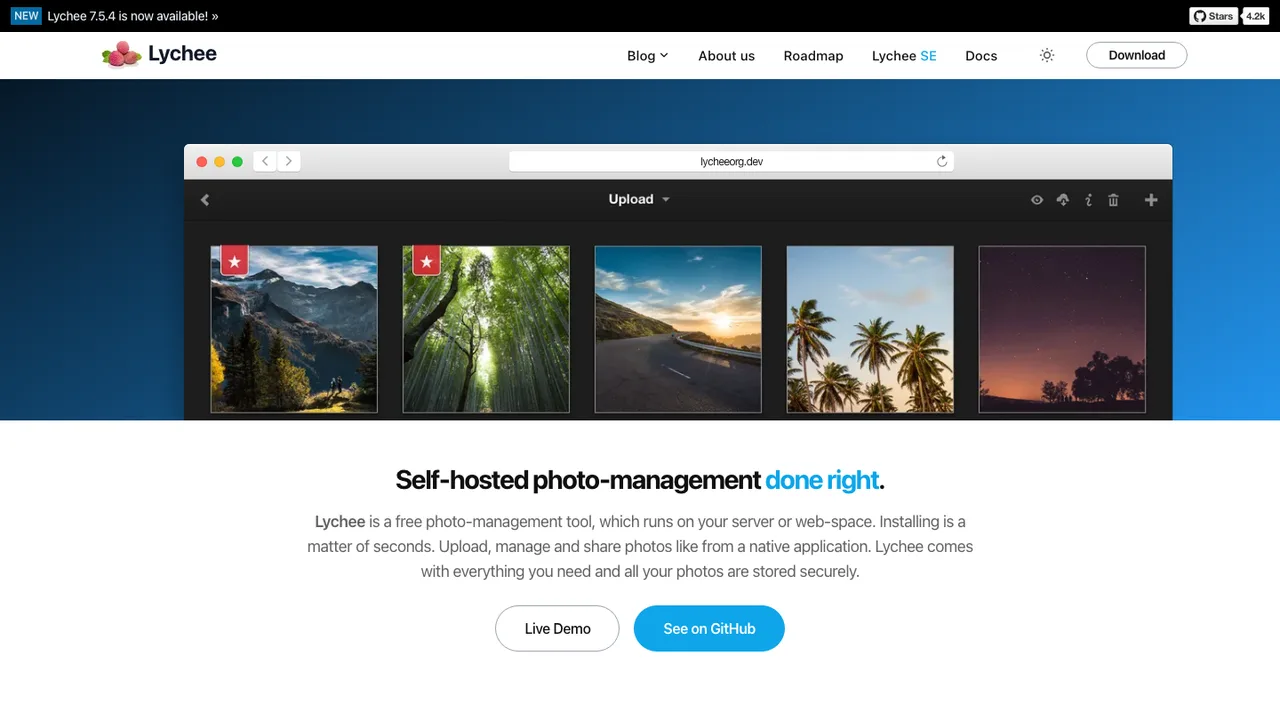
Lychee is a free, open-source photo management system that runs on your own server or web space. It lets you upload, organize, and share your photos through a clean, fast interface that feels much like a native application, while keeping your pictures stored under your control rather than in a third-party cloud.

  • Upload, organize, and manage a personal photo library
  • Share albums and photos with others
  • Native-app-like browsing interface
  • Self-host on your own server or web space
RawTherapee logo

6.RawTherapee

4kGPL-3.0C++
RawTherapee screenshot

RawTherapee is a raw photo developer for turning files from a broad range of digital cameras into finished images. It also handles HDR DNG files and non-raw formats like JPEG, TIFF, and PNG, so it can serve as a general editing tool too.

  • Fine-grained control over demosaicing and development
  • Reads raw files, HDR DNG, JPEG, TIFF, and PNG
  • Patched dcraw plus an in-house raw decoder
  • Detailed exposure, color, and detail tools

7.Damselfly

1.8kGPL-3.0C# Self-host
Damselfly screenshot

Damselfly is a server-based photo management system for large, folder-based libraries. It indexes your images so you can search and retrieve them by IPTC keyword tags, folder names, file names, and other metadata, with a workflow built around fast search and keyword tagging.

  • Metadata search by keyword tags, folders, and file names
  • Advanced filters for dates, camera, lens, and similar images
  • Local face detection, face recognition, and object detection
  • Selection basket with export and desktop sync for editing
Filmulator logo

8.Filmulator

749OtherC++
Filmulator screenshot

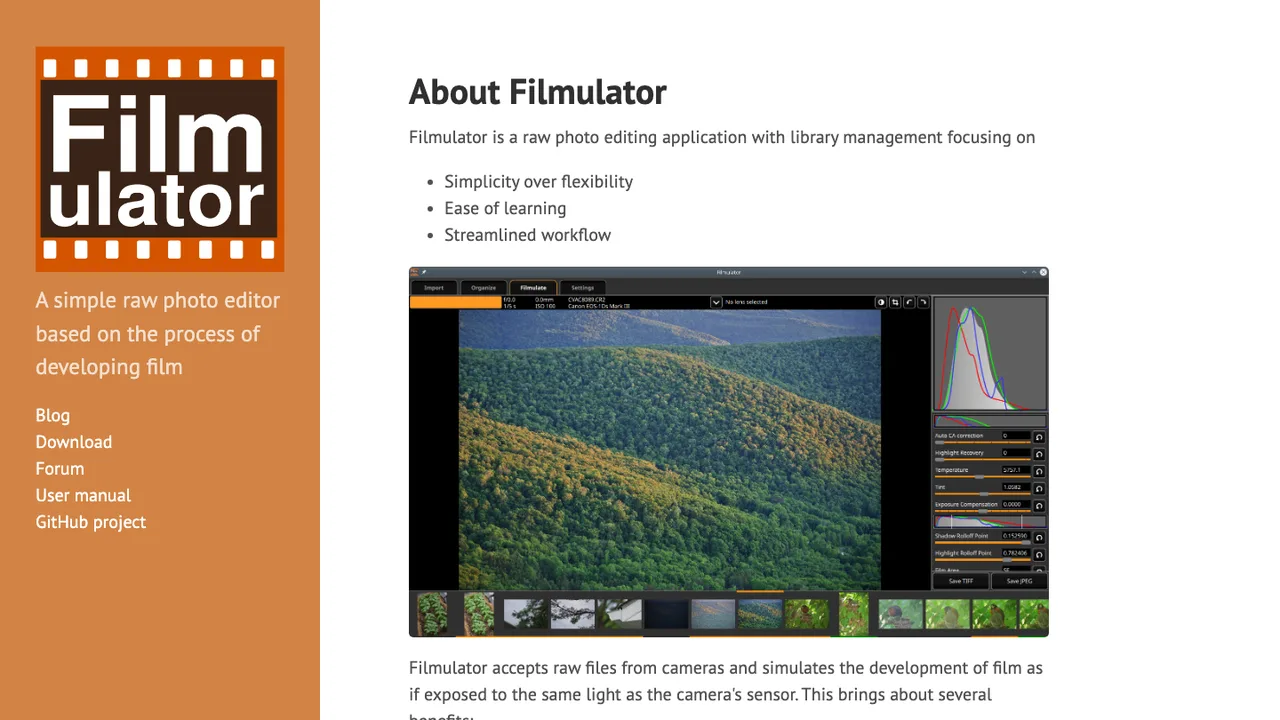
Filmulator is a raw photo editor that turns camera files into finished images through a deliberately simple workflow. Instead of a sprawling toolbox, it centers on one editing model, trading fine-grained control for a streamlined, approachable interface.

  • Imports raw files from cameras
  • Simulated film-style development for raw photos
  • Organize photos by date, rating, and queue
  • In-pipeline mini histograms for exposure and clipping

9.RealScaler

409MITPython
RealScaler screenshot

RealScaler is a Windows app that enhances, upscales, and denoises photos and video using Real-ESRGAN AI. All processing happens locally on your PC, so your source and output files never leave your machine and no internet connection is required.

  • AI upscaling of images and video with Real-ESRGAN
  • Denoises photos and video
  • Automatic tiling to fit GPU VRAM limits
  • Resize before upscaling

Switching from Lightroom to open source

Start by separating the jobs Lightroom has been doing for you. It is a raw developer, a nondestructive edit store, a catalog, an import pipeline, a metadata editor, and sometimes a cloud sync layer. Open source replacements often split those jobs differently. Decide whether you want a catalog database or a folder-first workflow, whether edits should live beside files as sidecars, and whether your main need is fast culling, precise raw development, or long-term archive control. The hardest part is not opening a raw file. It is replacing Lightroom's combined workflow without creating duplicate libraries or losing confidence in where the source of truth lives.

Expect visual and workflow gaps. Lightroom's develop engine, camera profiles, lens corrections, masks, healing behavior, presets, and sync model are not standardized outputs that another tool can reproduce exactly. You may get better control in some areas and rougher edges in others, especially around mobile editing, print layouts, batch operations, tethering, and polished asset management. Plan to rebuild defaults for noise reduction, sharpening, color rendering, and export recipes. If your clients or collaborators expect Lightroom-looking previews, test representative shoots before moving an entire archive.

Migration usually starts inside Lightroom. Consolidate missing files, clean up folders, write metadata to files where practical, and export originals rather than relying on rendered JPEGs unless you want flattened copies. Ratings, keywords, captions, dates, GPS data, and some labels often survive through metadata or XMP sidecars. Develop edits, history, masks, virtual copies, stacks, collections, flags, and smart collection rules usually need manual review or recreation. Keep the original catalog backup, export finished versions of important edited images, then import a small test folder into the new workflow before processing the whole library.

Related alternatives

Frequently asked questions

Is there a true drop-in open source replacement for Lightroom?+

Not really. Lightroom combines raw processing, catalog management, metadata editing, presets, export automation, and sometimes cloud sync in one application. Open source workflows can cover those needs, but often with different boundaries between tools. The closest match depends on whether you value the catalog, the develop controls, or the end-to-end workflow most. Treat the move as a workflow redesign, not just an application swap.

What happens to my Lightroom edits when I migrate?+

Lightroom edits are nondestructive instructions stored in its catalog and sometimes mirrored into XMP metadata. Another application can usually read the original raw file, but it will not recreate Lightroom's exact rendering pipeline. Basic metadata may transfer, while tone curves, local masks, healing, profiles, and history often do not. Export final JPEG or TIFF versions of important edited images before switching so you keep a visual reference.

How should I export a Lightroom catalog for use elsewhere?+

First fix missing files and confirm folder paths are clean. Then write metadata to files where Lightroom allows it, which can create or update XMP sidecars for raw formats. Export originals if you need a portable copy, and export finished versions for images whose edits matter. Do a trial import into the new tool with one representative folder, then inspect ratings, keywords, dates, GPS data, and rendered appearance before moving everything.

Will ratings, keywords, and collections survive the move?+

Ratings, keywords, captions, capture dates, and GPS data have the best chance because they map to common metadata fields. Collections are less portable because they are Lightroom catalog structures, not normal filesystem objects. Smart collections are even harder because their rules depend on Lightroom's database. If collections matter, consider recreating them as folders, keywords, or exported lists before migration so the grouping survives in a form another tool can understand.

Should I keep my RAW files in place or make a new exported library?+

Keeping raw files in place avoids duplication and preserves your existing folder structure, but it requires discipline around sidecar files and backups. Exporting a fresh library is cleaner for a break from Lightroom, especially if your current catalog has broken links or old imports scattered across drives. The safest path is a small copied test library first. Once the workflow is proven, decide whether to migrate in place or rebuild.

How close will open source RAW rendering look to Lightroom?+

Expect differences. Raw files are sensor data, and each processor applies its own demosaicing, color profiles, tone response, sharpening, and noise reduction. Even with the same exposure and white balance, the image may not match Lightroom. That is not automatically worse, but it means you should rebuild your baseline presets and compare skin tones, high ISO files, backlit scenes, and difficult color before committing client or archive work.

Do Lightroom presets and profiles transfer to open source tools?+

Usually not in a direct, reliable way. Lightroom presets reference settings in Lightroom's own develop model, and profiles may depend on formats or behaviors other applications do not implement the same way. Some simple adjustments can be recreated manually, but complex looks need rebuilding. Save sample exports from Lightroom, document key settings, and create new defaults in the replacement tool rather than expecting preset files to become portable assets.

How much does replacing Lightroom actually cost?+

The software license may cost nothing, but the migration is not free in time. Budget for testing, rebuilding presets, reorganizing folders, training muscle memory, and possibly adding storage for exports or backups. If you rely on cloud storage today, account for replacement hosting or local backup hardware. For a hobby library the cost is mostly time. For paid work, schedule migration between jobs and keep Lightroom available until old deliverables are safe.

What should I know about cloud sync and mobile editing after Lightroom?+

Lightroom's cloud and mobile workflow is one of the harder pieces to replace exactly. Open source options may be strong on desktop editing but lighter on phone review, tablet adjustments, automatic sync, and shared albums. You can often build a workflow with file sync, a web gallery, or a self-hosted library, but it may be less seamless. Test import, edit, export, and review from every device you actually use.

Is self-hosting useful for a Lightroom replacement?+

Self-hosting helps when your priority is browsing, sharing, and controlling where the photo archive lives. It is less likely to replace detailed raw development by itself. Many photographers use a desktop raw editor for adjustments and a hosted library for viewing, search, family access, or client delivery. If you self-host, pay attention to thumbnail generation, storage growth, user permissions, remote access security, and backup restore procedures.

Are open source photo tools safe enough for client work?+

They can be, but you need a workflow you can audit through results, not assumptions. Test color consistency, export dimensions, embedded profiles, metadata stripping, watermarking, and delivery formats before using them on paid work. Keep originals read-only where possible, use versioned exports, and verify that backups include sidecars and project databases. For sensitive shoots, also check how previews, caches, and temporary files are stored on disk.

How do large Lightroom catalogs translate to open source workflows?+

Large libraries expose differences quickly. Some tools prefer folder browsing and sidecars, while others maintain their own database. Test with tens of thousands of files, not just a vacation folder, and measure startup time, thumbnail building, search speed, and backup size. Break the migration into years, clients, or projects if needed. A slower but understandable folder structure is often easier to recover than one huge opaque database.

What happens if the open source project I choose is abandoned?+

Your risk depends on where your work is stored. If originals remain in normal folders and edits live in documented sidecar files, changing tools later is much easier. If the application keeps important state only in its own database, export options matter. Before committing, confirm you can back up the database, export metadata, batch render finished files, and open the archive without the application doing anything proprietary to your originals.